Getting started
1. Sign in
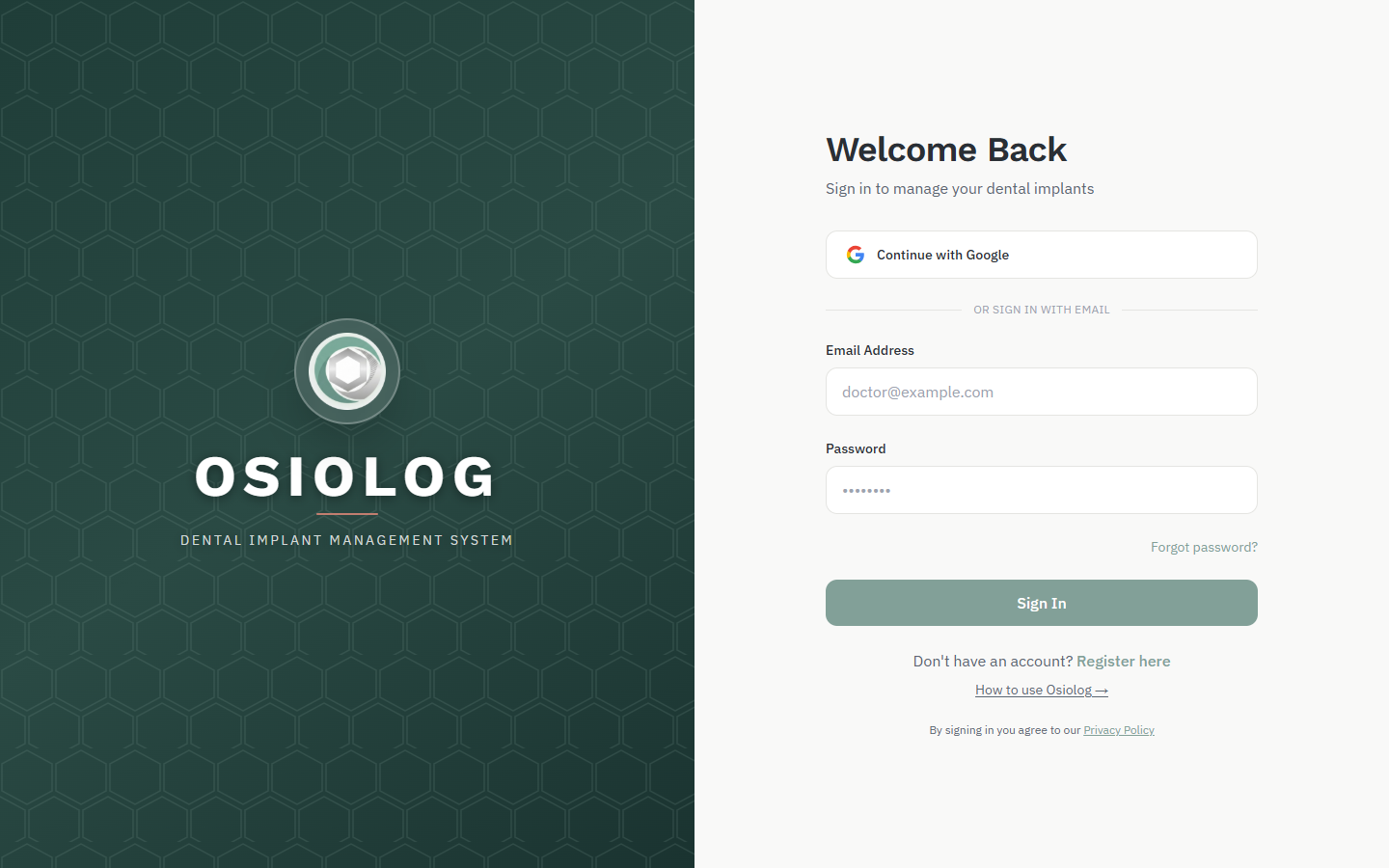
- Open track.osiolog.com in your browser.
- Click Continue with Google, or type your email and password and click Sign In.
- New to Osiolog? Click Register here below the Sign In button.
2. Your dashboard
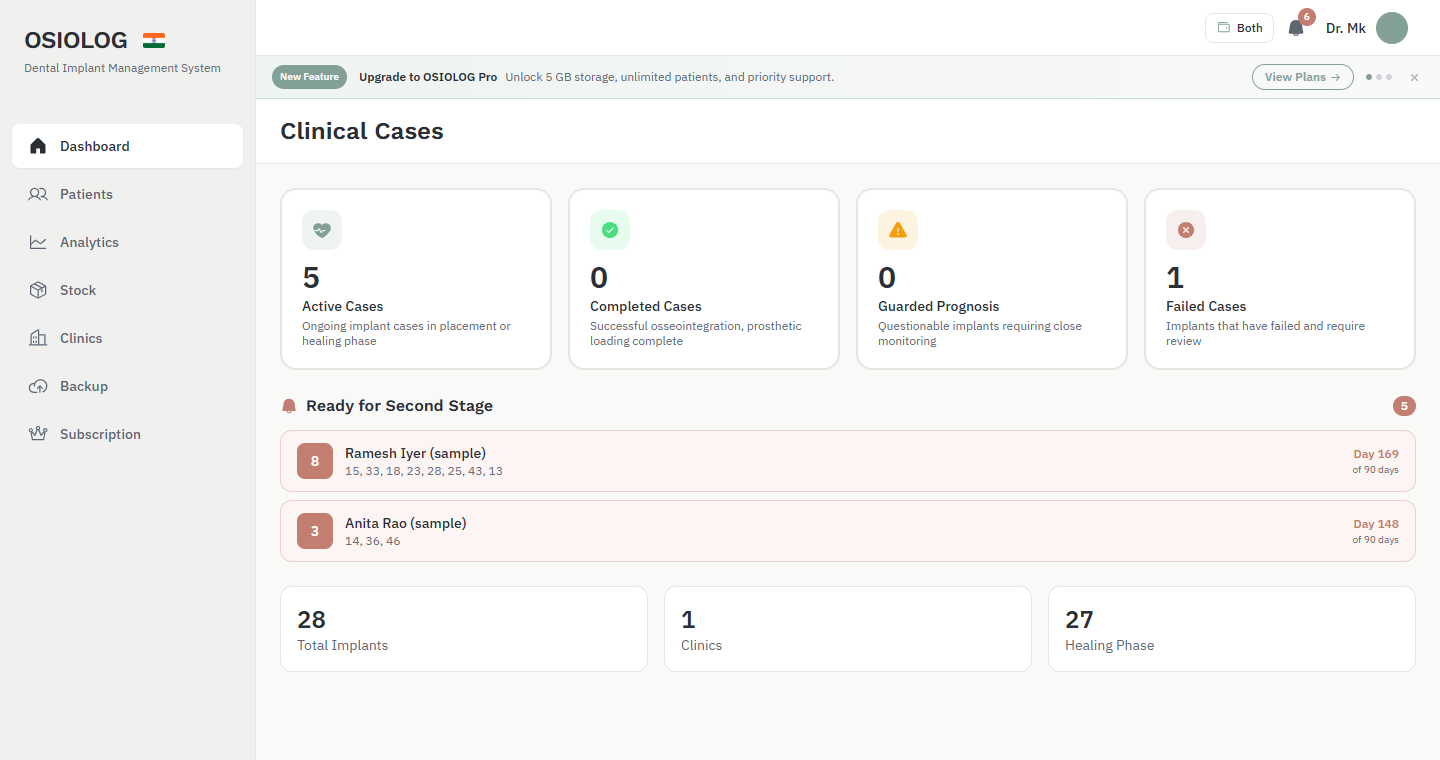
After signing in you land on the dashboard. It answers one question: what needs my attention today?
- The four cards count your active, completed, guarded and failed cases. Click a card to see those patients.
- Ready for Second Stage lists patients whose implants have passed their healing period. The number shows how many implants, and Day 148 of 90 means 148 days since placement against a 90-day plan. Click a row to open that patient.
- The bell at the top right shows the same reminders, plus follow-ups due this week and extraction sites due for an implant. The same reminders also come as a daily email.
3. Add your clinics
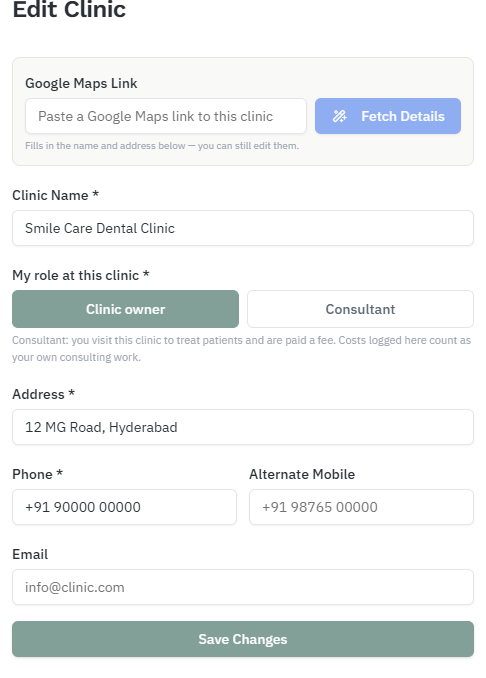
Add every clinic you work at, including the ones where you only visit as a consultant. Your role at each clinic decides which finances you see.
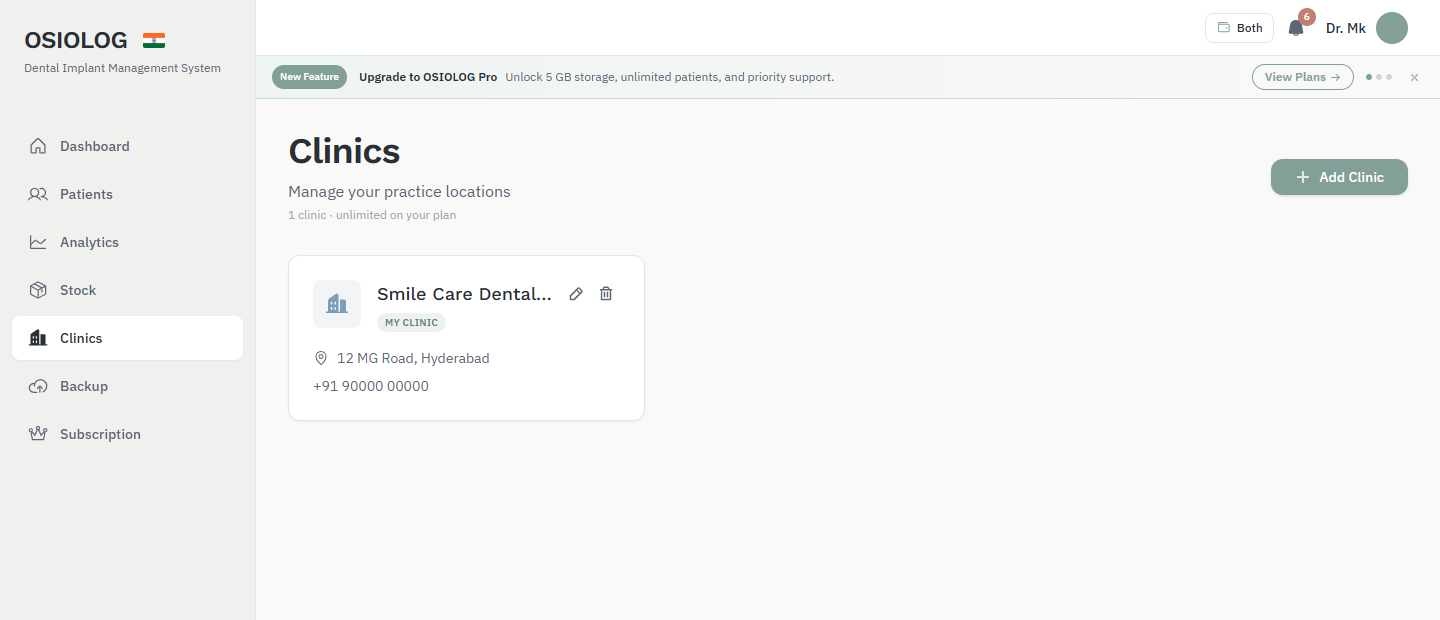
- Click Clinics in the left menu, then + Add Clinic.
- Optional: paste the clinic's Google Maps link and click Fetch Details to fill in the name and address.
- Under My role at this clinic, choose Clinic owner for your own clinic, or Consultant if you visit to treat patients and are paid a fee.
- Fill in the address and phone, then click Add Clinic. The card shows My clinic or I consult here.
Choose which finances you see
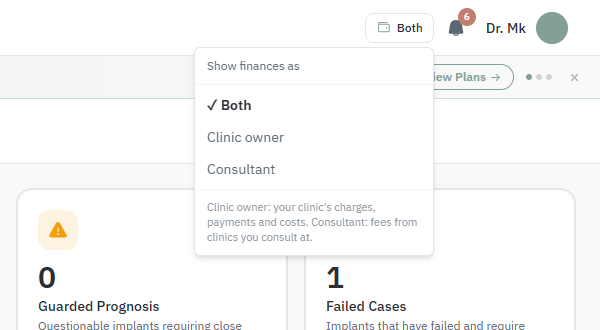
Beside the bell there is a small wallet button. Click it and choose what money to show: Both, Clinic owner (your clinic's charges, payments and costs) or Consultant (only the fees you earn at clinics where you consult). Your choice is saved to your account, so your phone and computer show the same view.
4. Add a patient
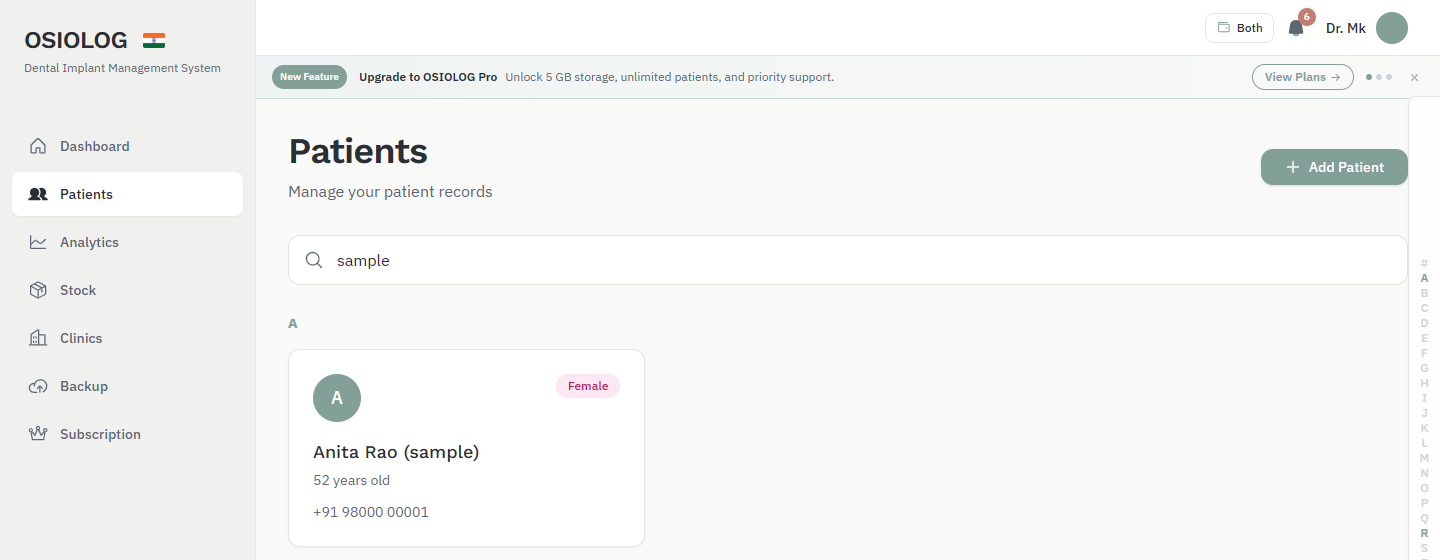
- Click Patients in the left menu. Use the search box to find someone, or the letters on the right edge to jump.
- Click + Add Patient.
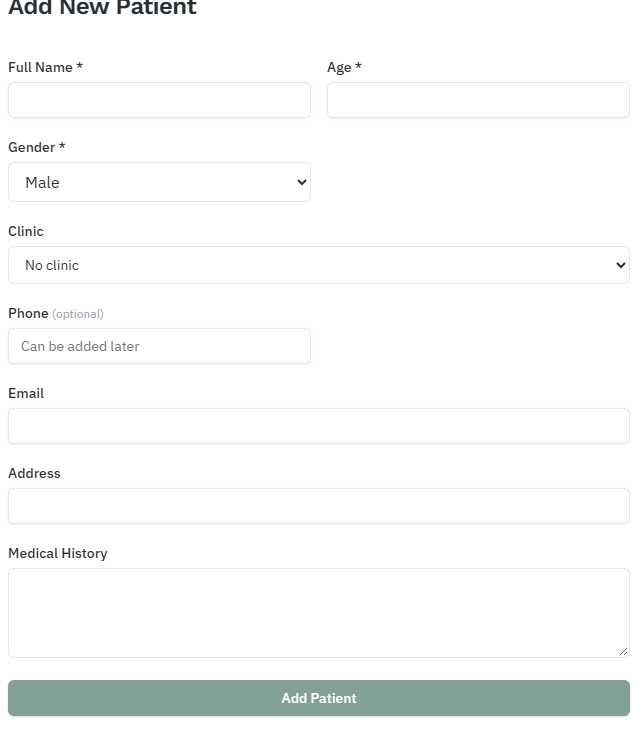
- Enter the name, age and gender. Then choose the Clinic this patient belongs to. It decides whether their finances count as your clinic's or as your consulting.
- Phone, email, address and medical history are optional; you can add them later. Click Add Patient.
5. The patient page
Click a patient to open their page. From top to bottom: details, finances, the chart, then every record.
- The top shows the patient's details and their clinic, with a My clinic or I consult here badge.
- Edit Details changes the patient's details or clinic. Export PDF downloads a full clinical report. History shows every change made to the patient's details.

Charting
6. The panoramic chart
The chart is drawn like a panoramic X-ray (OPG), using FDI tooth numbers. It is an illustration of what you have recorded, not a radiograph and not to scale.
- Pick a tooth: click it on the drawing, or click its number in the Tooth sites grid under the chart.
- Read its records: the panel on the right shows everything saved for that tooth: implant brand and size, torque, ISQ, dates, abutment, crown and lab.
- Add a record: the buttons in the panel open the matching form, with the tooth number already filled in. The chart redraws as soon as you save.
- This case at the bottom of the panel totals the whole mouth: implants by type, abutments, crowns, bridges and missing teeth.
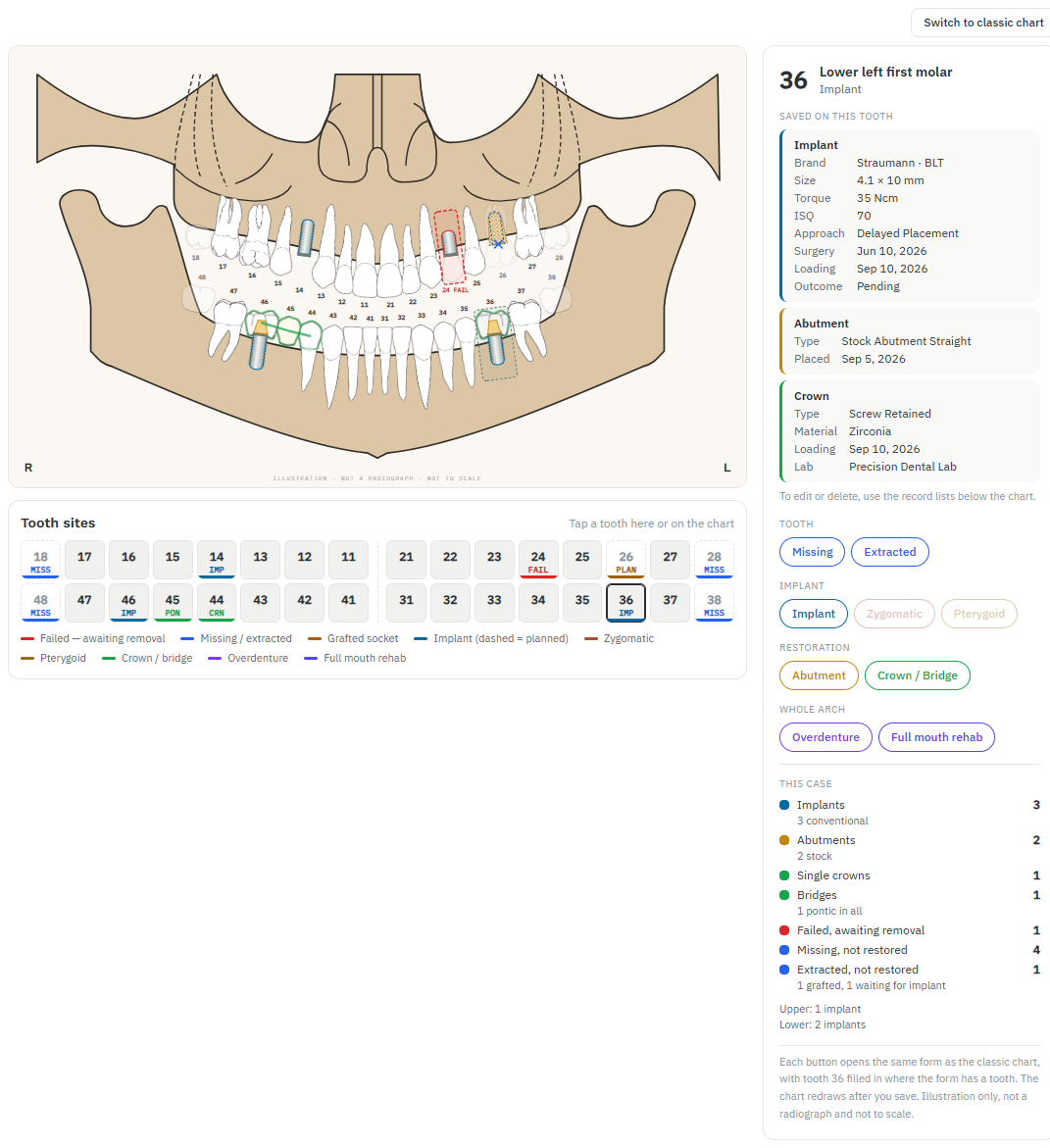
Colours used on the chart and in the grid:
7. Record missing teeth
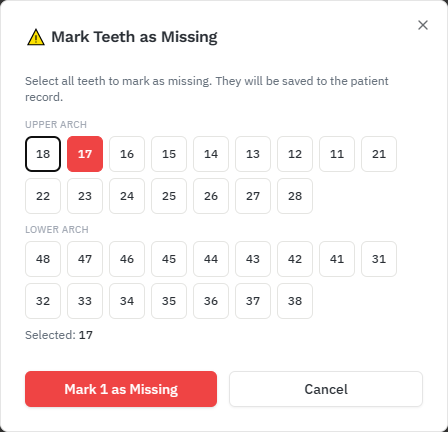
- Select any tooth, then click Missing in the panel.
- In the window that opens, tap every tooth that is missing. You can mark several at once.
- Click the red button to save. Missing teeth show as faint outlines tagged MISS.
- To undo, select the tooth and click Undo missing.
8. Log an implant
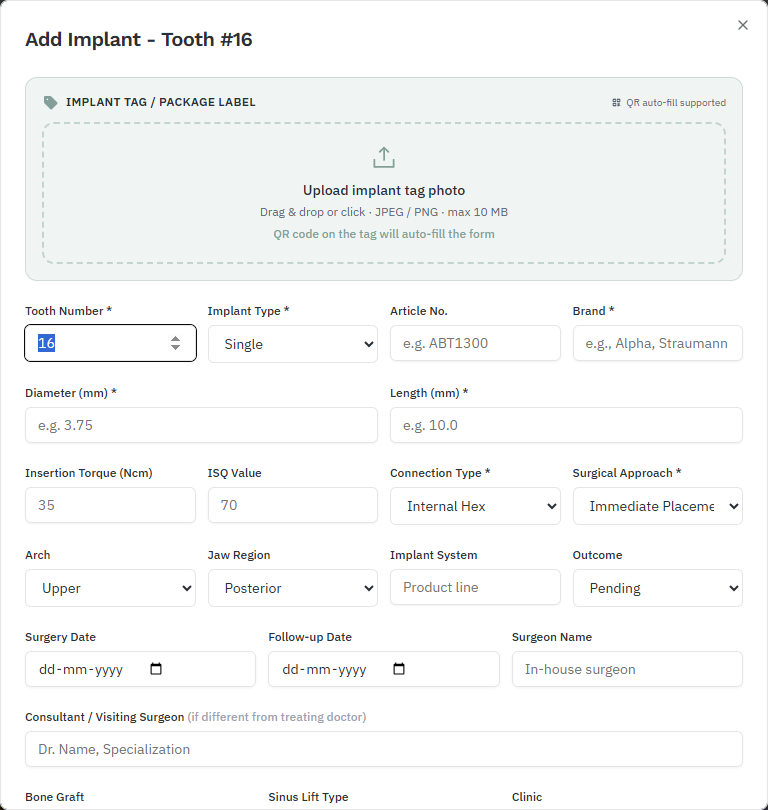
- Select the tooth, then click Implant in the panel.
- Optional: upload a photo of the implant's tag or package label. If it has a QR code, the form fills itself in.
- Fill in the brand, system, diameter and length, plus torque and ISQ if you measured them. Then the approach, surgery date, follow-up date and clinic. The clinic starts as the patient's clinic.
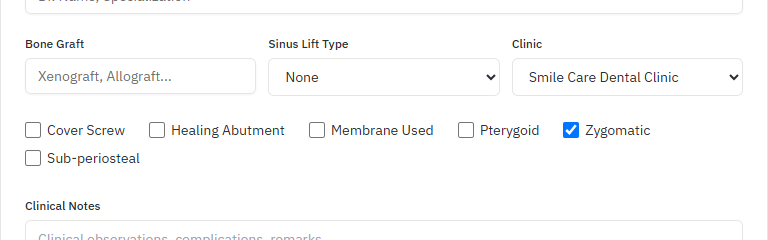
- Tick any that apply: cover screw, healing abutment, membrane, pterygoid, zygomatic or subperiosteal. Then save.
9. Zygomatic and pterygoid implants
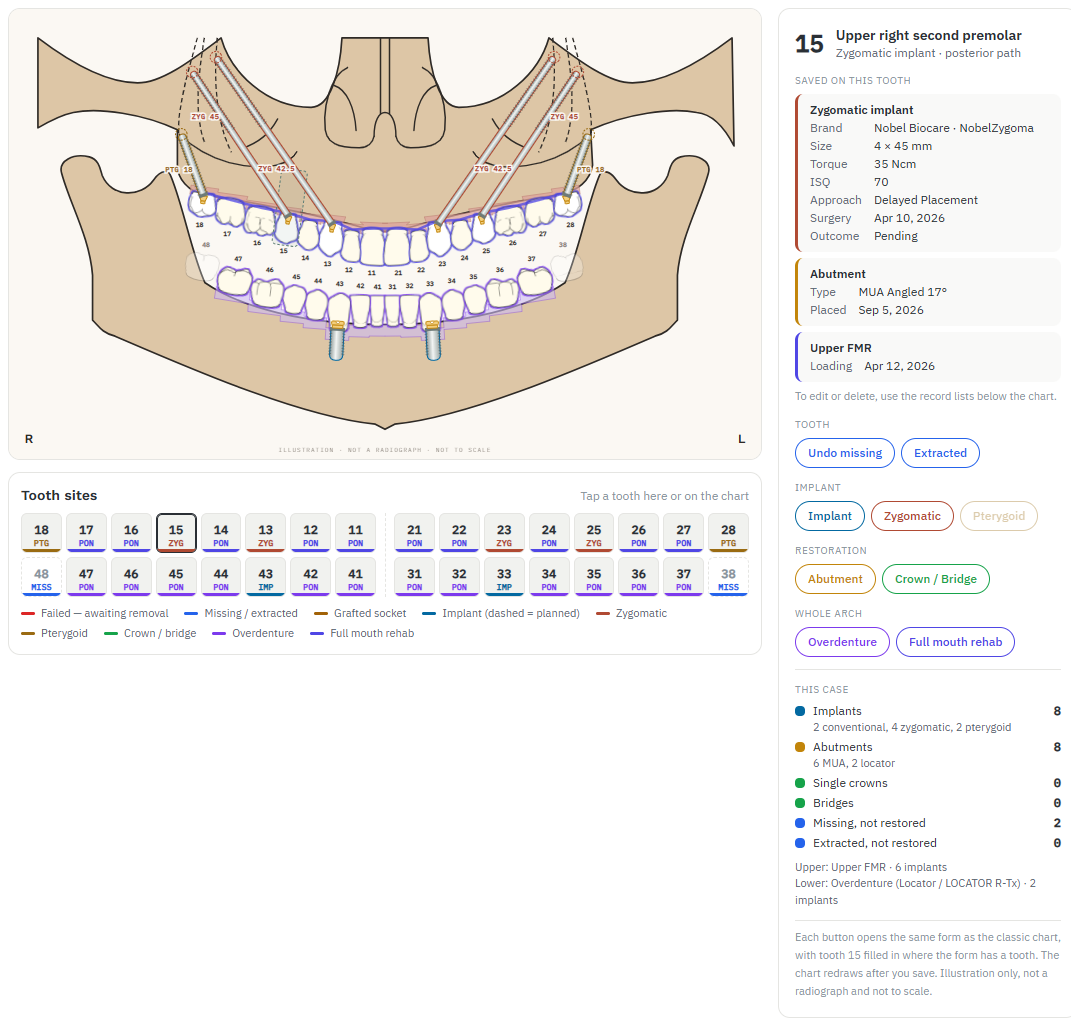
On the panoramic chart these are drawn from the crest up into the zygoma or the pterygoid plate, with their length.
- Select an upper tooth: 12–16 or 22–26 for zygomatic, 17, 18, 27 or 28 for pterygoid. Buttons that don't apply to that tooth are greyed out.
- Click Zygomatic or Pterygoid. The normal implant form opens with that box already ticked.
- Enter the length (for example 42.5 or 45 mm) and save. Teeth 12–13 and 22–23 are drawn on the anterior path, 14–16 and 24–26 on the posterior path.
10. Abutments
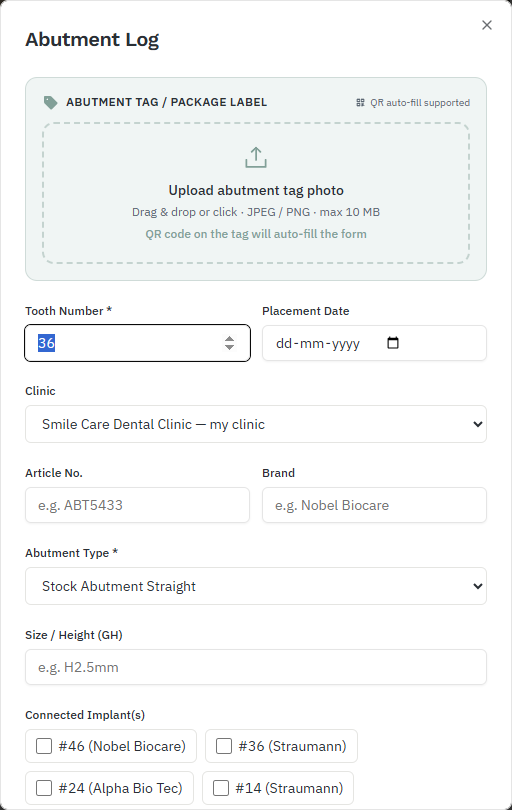
- Select the implant's tooth and click Abutment.
- Optional: upload the abutment's tag photo.
- Choose the type: stock, MUA straight or angled, ball, locator, custom milled, UCLA or Ti base. Then the brand, size, placement date and clinic. Save.
- Each type has its own shape on the chart: tapered stock, MUA cone, ball (a post with a ball) and locator (a low flat cap).
11. Crowns and bridges
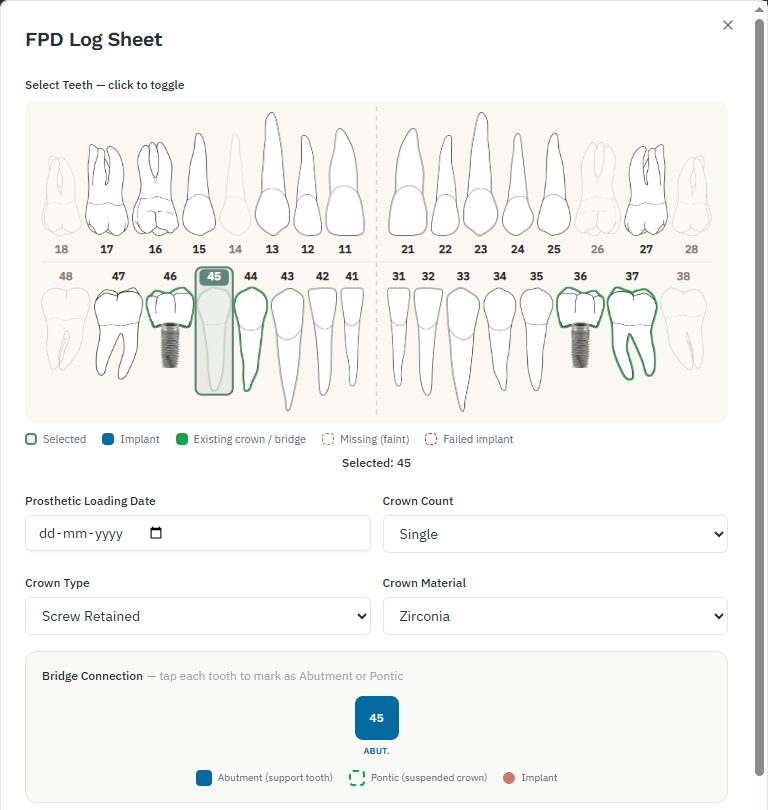
- Select a tooth and click Crown / Bridge.
- For a bridge, click every tooth in the span on the small chart at the top of the form, including the missing ones. Missing teeth in a bridge become pontics.
- Fill in the loading date, crown type (screw or cement retained), material and lab, then save. On the chart, crowns get a green outline and bridges a green connector.
12. Extractions, grafts and planned implants
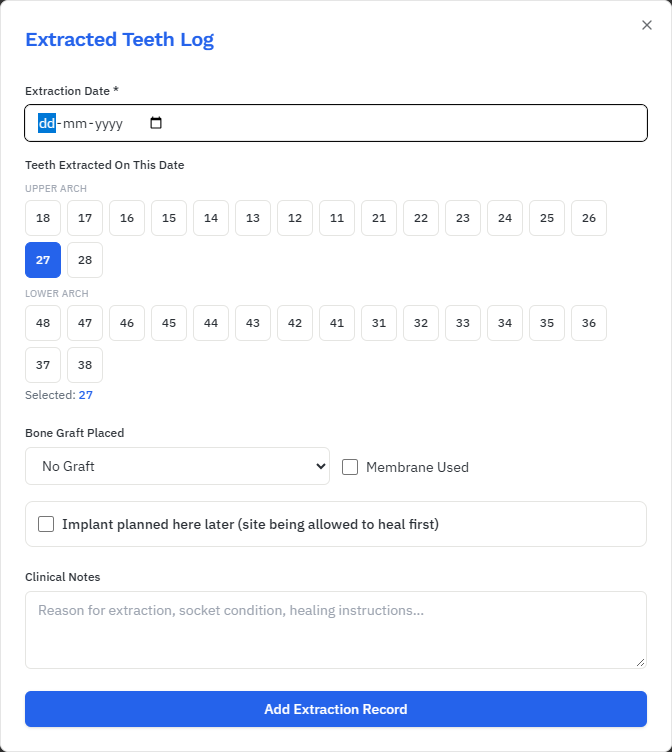
- Select the tooth and click Extracted. The form opens with that tooth already selected; add others if you extracted more on the same day.
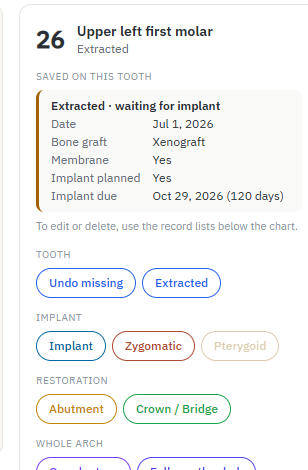
- Enter the extraction date. If you grafted, choose the bone graft and tick membrane if used.
- If an implant will go here later, tick Implant planned here later and enter how many days to wait.
- Save. On the chart a grafted socket shows dotted, and a planned implant shows as a dashed outline. When the waiting period is over, you get a "due for implant" reminder.
13. Overdentures and full mouth rehab
- Log the supporting implants first; each needs its own record.
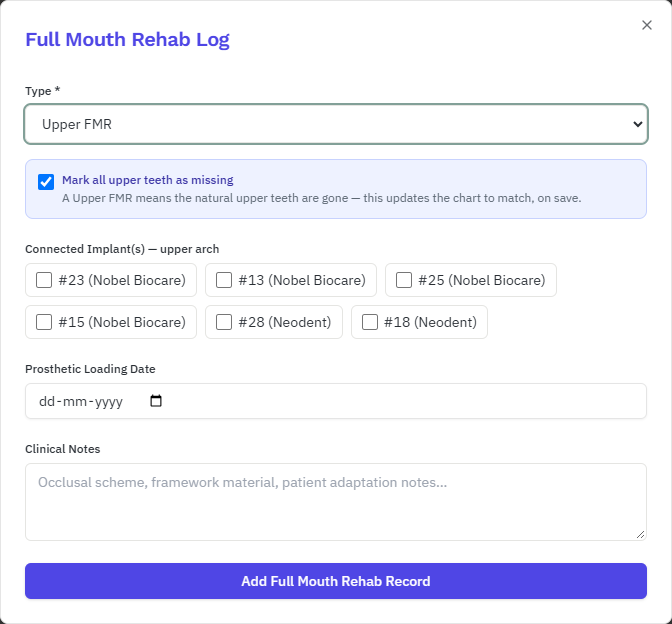
- Click Overdenture or Full mouth rehab under Whole arch in the panel.
- For full mouth rehab, choose the type (Upper FMR, Lower FMR, both arches, hybrid or Malo). Leave Mark all upper teeth as missing ticked if the natural teeth are gone.
- Tick the connected implants, add the loading date and save. For an overdenture, also choose the attachment (ball, locator, bar, magnet and others). A bar is drawn joining the implants, with clips.
Follow-up
14. Healing and second stage
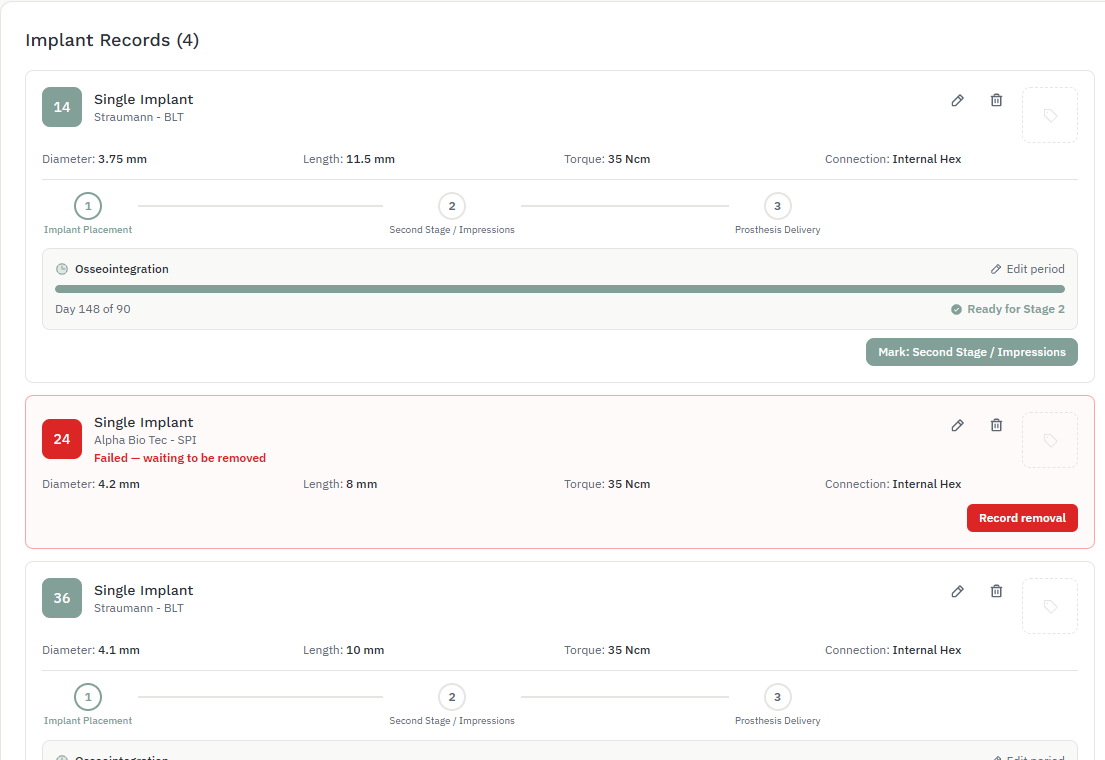
- Scroll down to Implant Records. Each implant shows its three stages: placement, second stage / impressions, and prosthesis delivery.
- The Osseointegration bar counts the days since surgery. Click Edit period to change the 90-day default for that implant.
- When the bar says Ready for Stage 2, click Mark: Second Stage / Impressions once it's done, and later Mark: Prosthesis Delivery. Use Revert to step back if you marked one by mistake.
15. Failed implants
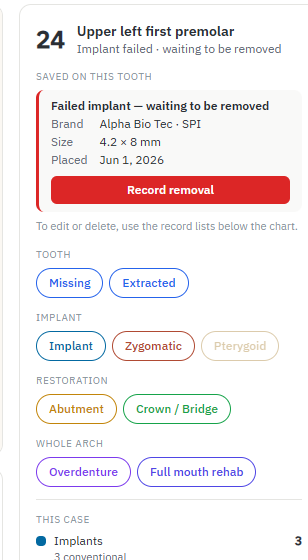
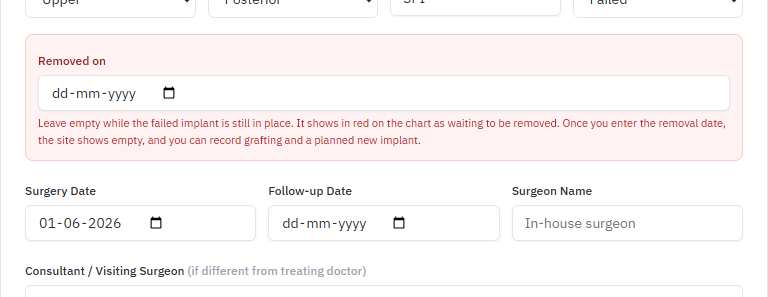
A failed implant goes through two stages: first it is still in place, waiting to be removed; then it is removed and the site is empty again.
- Scroll to Implant Records, click the pencil icon on the implant, and set Outcome to Failed. Leave Removed on empty. The implant turns red on the chart and leaves the second-stage and follow-up reminders.
- When you remove it, select the tooth and click the red Record removal. Enter the Removed on date and save.
- The Extracted Teeth form then opens with that site and date filled in. Record any graft and whether a new implant is planned, with the waiting days. To skip, close the form.
- The site now shows empty, or grafted with a planned implant. The records list shows Failed — removed on (date) and Failed implant removed — Tooth site 24.

Money
16. Finances
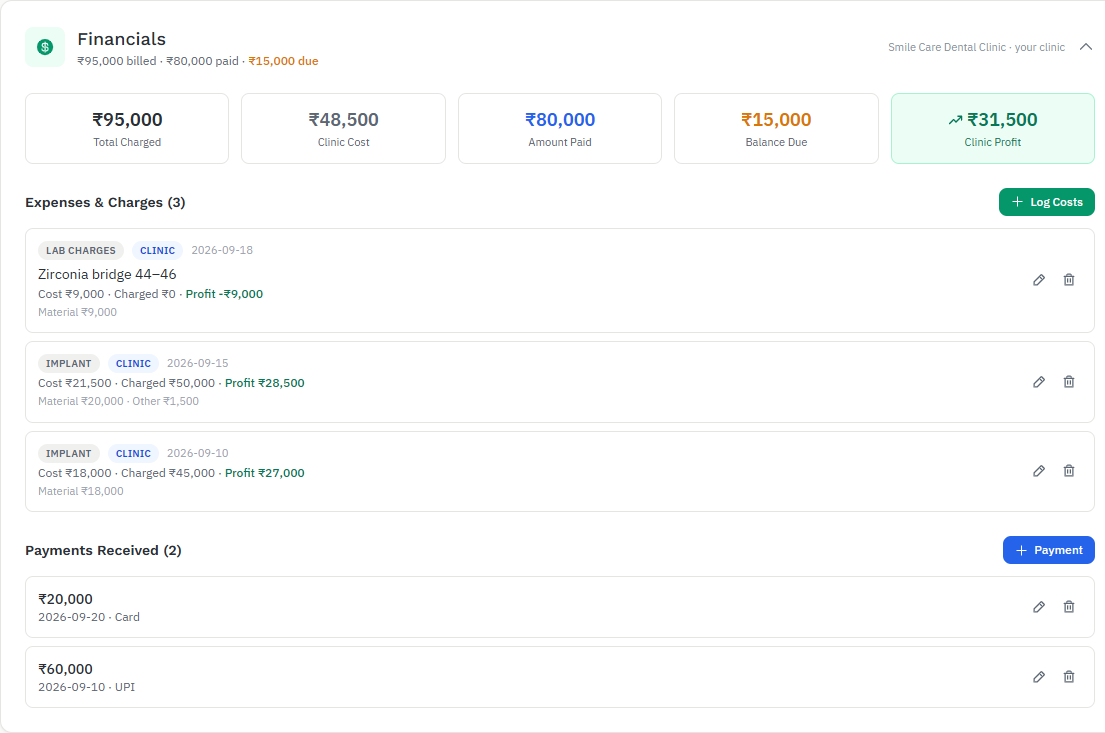
Every patient has a Financials box near the top of their page. Your role at the patient's clinic decides what it shows:
| Patient's clinic | What you see |
|---|---|
| Your own clinic | Charged to patient, clinic cost, payments received, balance due, clinic profit. |
| A clinic where you consult | Only your fees, your own material and other costs, and your profit. There's no payments box, because the patient pays that clinic, not you. |
| No clinic set | Whatever you chose in "Show finances as" beside the bell. |
Log costs and charges
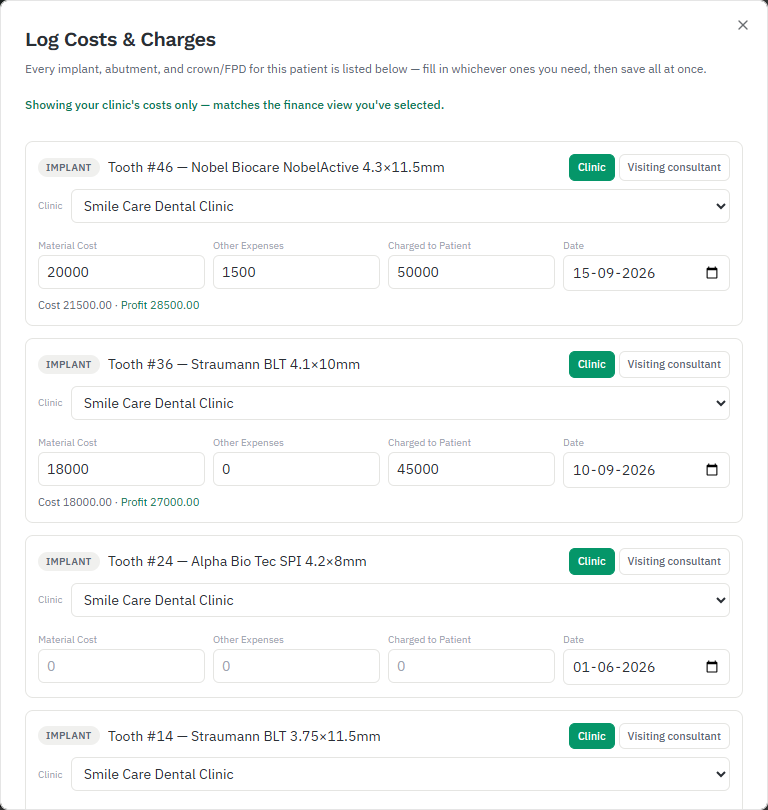
- Open Financials and click + Log Costs. Every implant, abutment and crown for the patient is listed, each with its clinic.
- For your own clinic's work, fill in the material cost, other expenses and what you charged the patient. If a visiting consultant did the procedure, choose that and enter their fee.
- At a clinic where you consult, the row is marked My consulting: enter the fee you receive and your own costs.
- Use + Lab / Consultant / Other Charge for anything else, then Save All.
- Record money the patient pays with + Payment. The balance due updates.
See the whole practice
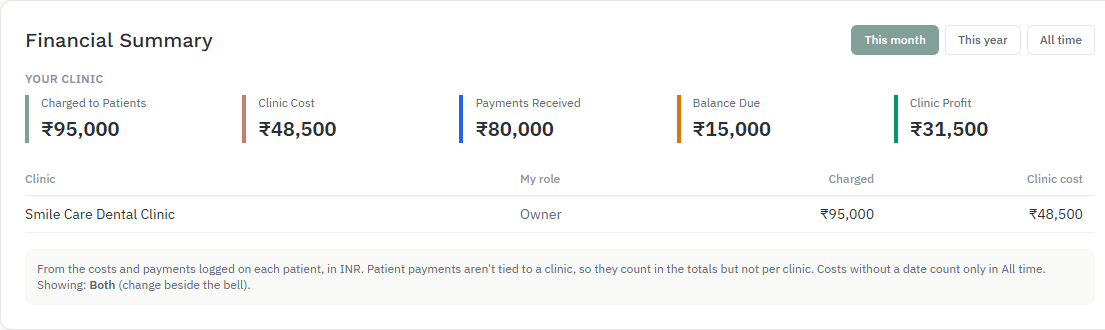
Click Analytics in the left menu. The Financial Summary totals your real costs and payments for This month, This year or All time, with one row per clinic. It follows the "Show finances as" choice beside the bell.
Everything else
17. Photos, reports, stock and backup
Photo Vault
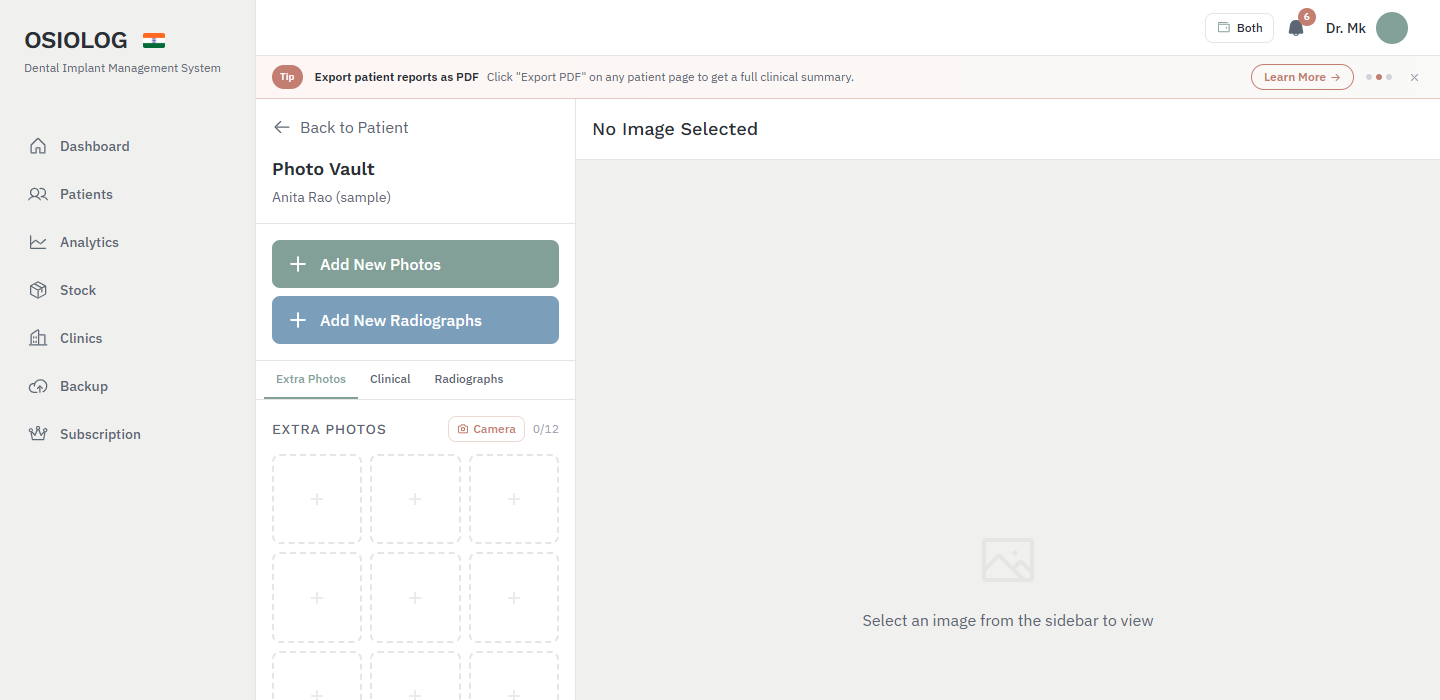
On the patient page, click Photo Vault under the chart. Add clinical photos or radiographs; they are sorted by date. You can use the camera on your phone.
PDF report
On the patient page, click Export PDF. The report includes the patient's details, the chart, every record and their photos. It's ready to share with the patient or another clinician.
Stock
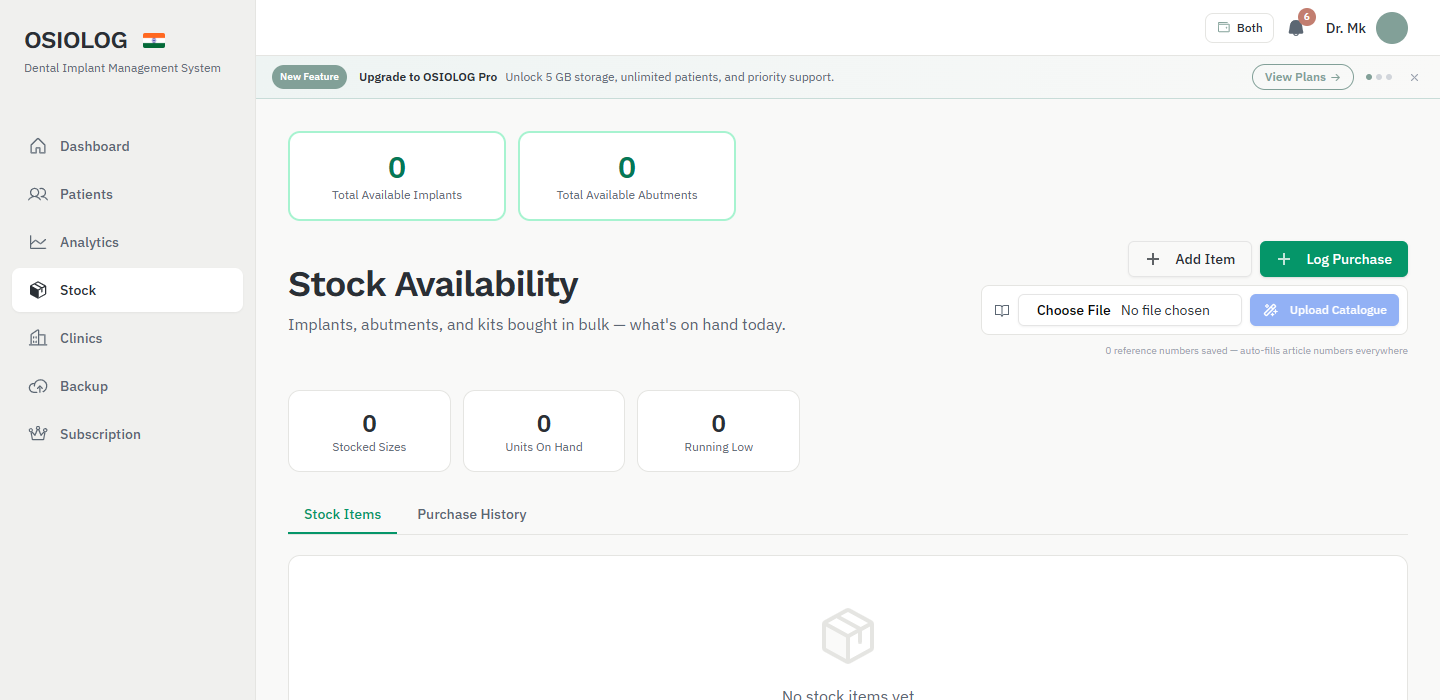
Click Stock in the left menu to track implants, abutments and kits you've bought. Log a purchase, or scan a catalogue. When you pick a stock item in the implant or abutment form, it is taken off your stock automatically.
Backup
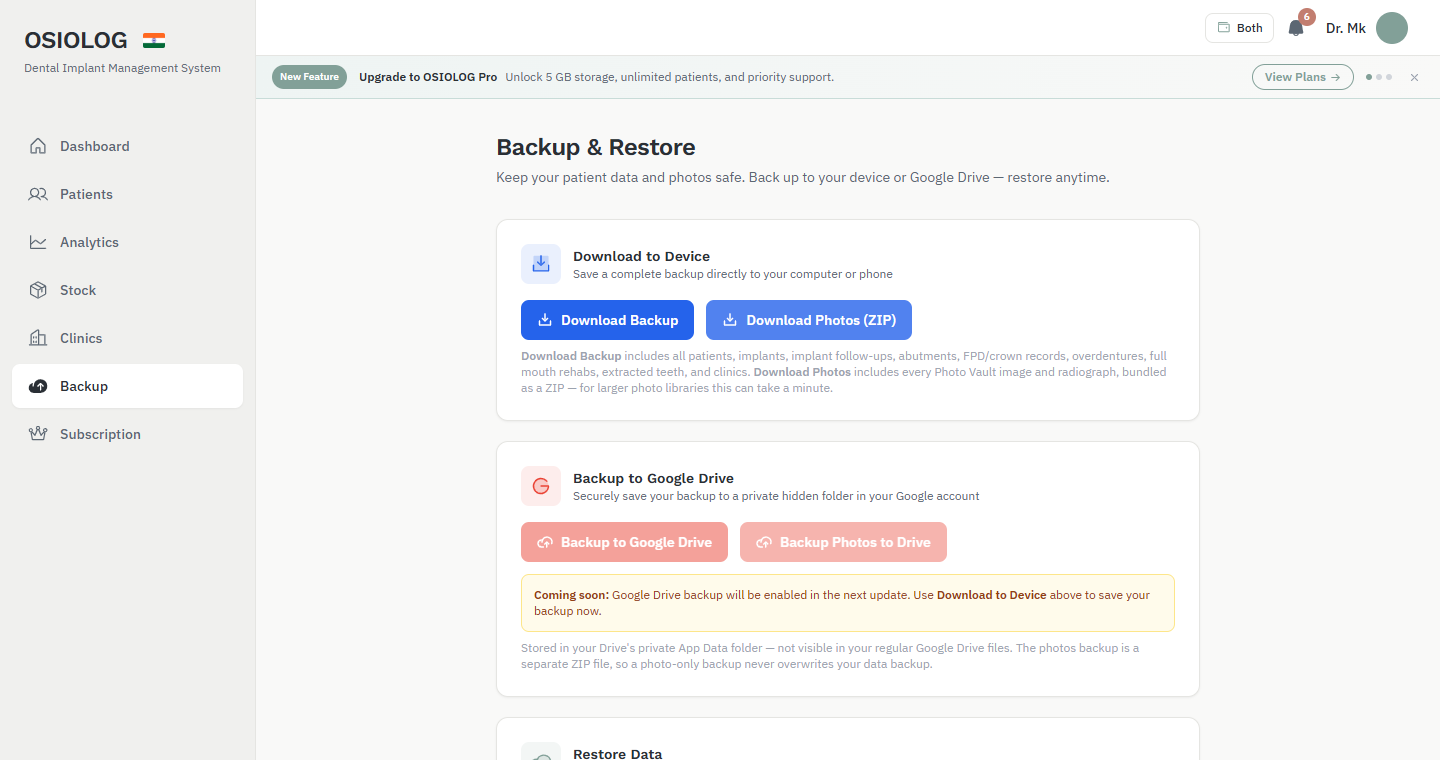
Click Backup in the left menu. Download Backup saves all your patients and records to your computer, and Download Photos (ZIP) saves every photo. Restore from the same page if you ever need to.